

Introduction
In previous blogs, I have written about my process to automate the deployment of an AVD environment. This process was using Azure DevOps for the pipeline management and ARM templates/BICEP for the scripting.
I was asked by a follower if this would work using GitHub Actions. So I thought I would have a go at translating my automation to use Github Actions and document the process here.
Configuration
So first we need to make sure we have all the relevant bits in place to start building out this deployment. I will try to highlight all the different components we need to configure in order to get this deployment built.
GitHub Repo
Firstly, make sure you have a suitable GitHub Organization and Repository to host your deployment scripts. I am just going to use my existing GitHub Repo as I will be reusing a lot of the code from my previous deployment build.
I have created a new folder called GitHubActions and copied the mainBuild.bicep and module files from my previous build.
The main bulk of the script will remain the same as the BICEP code itself works regardless of where it is deployed from, although I may have to make some small changes.
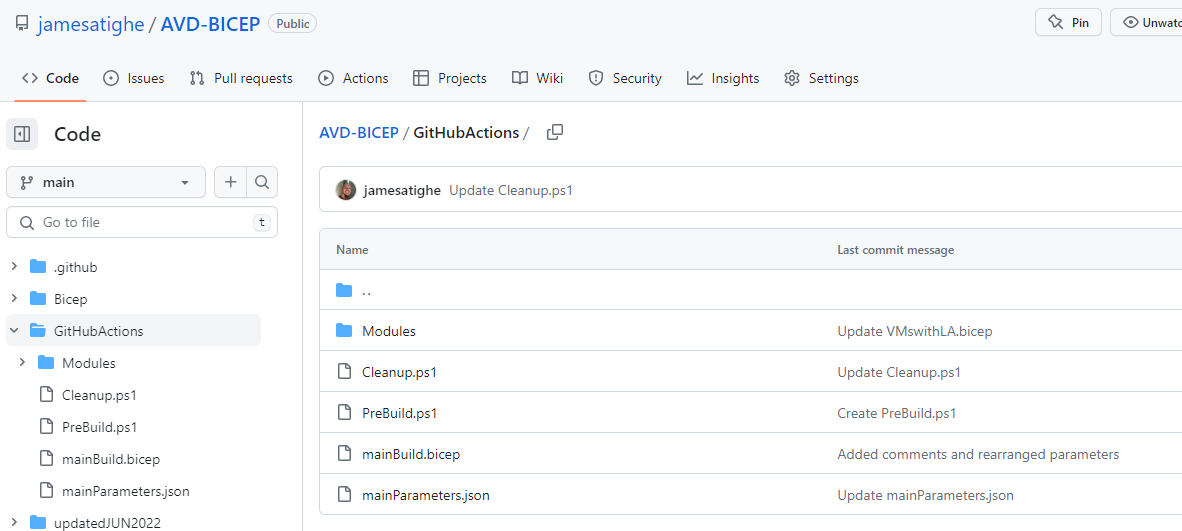
As well as the main BICEP files I also have copied over my PreBuild.ps1, Cleanup.ps1 and the mainParameters.json file.
PreBuild.ps1 is used to perform several checks to determine which image version is needed, as well as to create the required VM prefix that will be used.
mainParameters.json contains the core settings for the BICEP deployment and can be used to change various settings. We are going to be setting a large amount of settings within GitHub variables and secrets, but some core settings can be saved into this file to save having to declare every parameter as inline.
Azure Service Principal
Just like any other Azure deployment, we do need to make sure we have a suitable Azure Service Principal configured for access to our Azure environment.
I shall be reusing the service principal that I use for Azure DevOps as I have the Secret saved. In this case, it is the wonderfully named TighetanicSoftware-AVD Builds-68378d17-e88b-4320-aa30-fc53a7e3bc79

Make sure this service principal has the required level of access over the subscription to perform the deployment. For my testing purposes, I have set Contributor permissions over the subscription. In your own use case, you may want to limit the permissions as required.
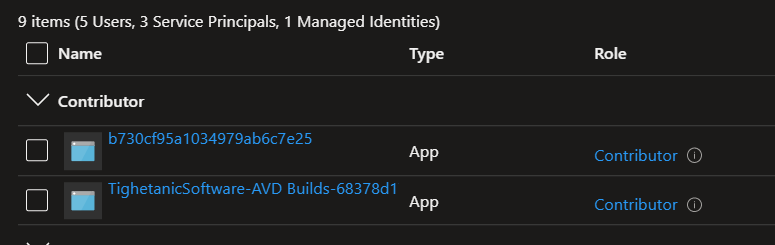
Due to a Role Assignment task in my DSC script I also needed to grant the Serviced Principal API Permissions over Microsoft Graph.
The permission required are shown below:

If thes API Permissions are not set then the New-AzRoleAssignment used to grant the Desktop Virtualization User will fail and users will not be assigned to the Application Group.
GitHub Secrets
We now need to create a number of secrets within GitHub to store some of the sensitive data, such as Subscription IDs, App Secrets, and Passwords.
GitHub secrets are basically encrypted variables that can be used within your GitHub Actions workflow. Once defined that can be accessed via the workflow to ensure sensitive data is not exposed.
So firstly we need to create a few key secrets that will be used to connect to Azure in order to perform the deployment.
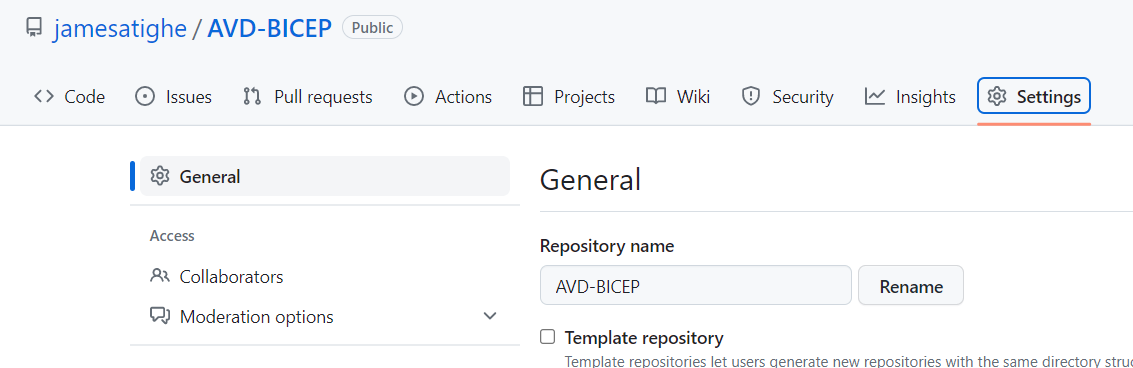
First, click the Settings icon
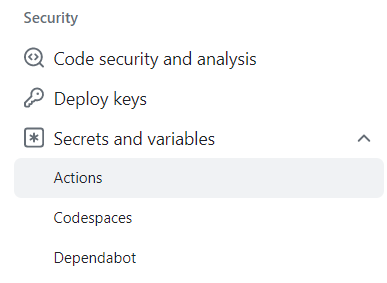
Then select Secrets and variables > Actions
We can now create our required secrets by selecting New repository secret

Firstly we need to create a secret called AZURE_CREDENTIAL. This needs to contain 4 settings including: clientId (from the Service Principal), clientSecret (again from the Service Principal), subscriptionId (the subscription that you will be deploying into), and finally the TenantId.
The contents of the secret will look similar to the below:

There are a number of other secrets that are required for the build to complete. They are listed below:
| Secret Name | Value |
| AZURE_SUBSCRIPTION | Subscription ID |
| ADMINUSERNAME | Username for Administrative user e.g admin@domain.co.uk |
| ADMINPASSWORD | Password for Administrative account |
| LOCALADMINUSERNAME | Local Admin Username used for Session Hosts VMs |
| LOCALADMINPASSWORD | Local Admin Password used for Session Host VMs |
| APPID | ClientID for the Service Principal. This is used for some configuration settings |
| APPSECRET | Secret for the Service Principal |
| AZURE_GALLERY_SUBSCRIPTION | Subscription ID for subscription hosting the Azure Compute Gallery. This is to allow use of a Gallery in a different core subscription. |
| AZURE_TENANTID | Tenant ID for Azure |
| DOMAIN | Domain to be used for the domain join operation |
| LOGWORKSPACESUB | Subscription ID for subscription hosting the Log Analytics Workspace for monitoring This is to allow use of a Log Analytics workspace in a different core subscription. |
| WORKSPACEID | The ID of the Log Analytics Workspace to be used for monitoring |
| WORKSPACEKEY | The key for access to the Log Analytics Workspace to be used for monitoring |
GitHub Variables
GitHub also allows Variables to be saved in the same manner as Secrets. Variables are used for data that does not need to be encrypted. We will use this to store most of our variables for deployment.
Within the same Actions secrets and variables section click the Variables tab

We can now configure all the variables we will need for the build.
| Variable Name | Value |
| ASSIGNUSERS | Used to set whether assignments are created for the Application Group. If set to “true” the users/groups referenced in DEFAULTUSERS will be assigned. If “false” this step will be skipped. |
| DEFAULTUSERS | Comma-separated list of users and Azure Security Group IDs e.g. user1@domain.co.uk,user2@domain.co.uk,e69f912e-545e-466f-bb91-fe6682065977 |
| EPHEMERAL | Whether the VMs should have ephemeral disks. If true then VMs will not be able to be scaled |
| HOSTPOOLNAME | Name for the Host Pool |
| HOSTPOOLFRIENDLY | Friendly name for Host Pool. This will show in Remote Desktop Client. |
| LOGWORKSPACENAME | Name of the Log Analytics Workspace for monitoring |
| LOGWORKSPACERESOURCEGROUP | Resource Group containing the Log Analytics Workspace |
| RESOURCEGROUP | Main Resource Group to provision AVD components NOT VMs. This must be different from the VMRESOURCEGROUP variable |
| NEWBUILD | Whether this is a new build. If ‘true‘ a new workspace, host pool, and application group will be created, and VM numbering will start at 0. If ‘false‘ VMs will be numbers continuing from the current amount |
| UPDATE | Whether this build is an update to an existing deployment. If ‘true‘ the latest VM image will be used from the Azure Compute Gallery. This should be combined with NEWBUILD being set to true which will trigger an Update will to deploy new session hosts to replace existing ones |
| VMLOCATION | The region to deploy the Session Host VMs. E.G: northeurope |
| VMDISKTYPE | Disk type to use. E.G. Standard_LRS or Premium_LRS If using Premium ensure the VMSIZE parameter is set to a compatible VM series |
| VMNAMEPREFIX | Name Prefix used for the Session Host VMs. E.G: AVD-PROD The naming of the VMs will contain the image version numbers. E.G if the image is 1.11.0 then the VMs will be names AVD-PROD-11-0-X This is to allow for updates and the version number is used to show patch month and version |
| VMRESOURCEGROUP | Resource Group that the Session Host VMs will be deployed into. |
| VMSIZE | Size of the Session Host VMs. E.g: Standard D2_v3 |
| NUMBEROFINSTANCES | Number of Session Hosts required |
| SHAREDIMAGEGALLERYRESOURCEGROUP | Resource Group containing the Azure Compute Gallery |
| SHAREDIMAGEGALLERYNAME | Azure Compute Gallery name |
| SHAREDIMAGEGALLERYDEFINITIONNAME | Azure Compute Gallery Definition Name containing the required image. E.G AVDGOLDEN |
| SHAREDIMAGEGALLERYVERSIONNAME | Version name for the required image. E.g: 1.11.0 |
GitHub Action Workflow
Now we have the pre-requisite work out of the way we can start building out our pipeline!
So first let’s create a new GitHub Actions Workflow. This is basically the Pipeline as it exists in Azure DevOps. The Workflow is a YML file containing all the steps and settings to perform the deployment.
Click on Actions and then click set up a workflow yourself

We now will see a blank editor window that we need to fill with all that YML goodness.

My actual code can be found on my GitHub but it should look something like this.

Once you are done click Commit changes…
If we check back in the Actions section we should now see our nice new Workflow

We now have the basis of our deployment. In the next section, I will try to explain what the relevant parts are doing.
The actual YML file can be found in the GitHub Repo under .github/workflows/main.yml

YML Workflow
So we’ve copied the YML file in and created the Workflow but now we need to delve into what it’s actually doing.
The main.yml file contains a number of configurations and steps to complete the deployment.
I have tried to replicate the existing structure of my Azure DevOps build in order to reuse the code.
Below is the YML file in all its glory:
name: AVD Deployment

on:
  workflow_dispatch:

jobs:
  AVDDeployment:
    name: AVD Deployment
    runs-on: windows-latest
    steps:
      - uses: actions/checkout@v3

      - name: Login to Azure
        uses: azure/login@v1
        with:
          creds: ${{ secrets.AZURE_CREDENTIALS }}
          enable-AzPSSession: true

      - name: Pre-build Script
        uses: azure/powershell@v1
        id: preBuildScript
        with:
          inlineScript: |
            ./GitHubActions/PreBuild.ps1 -SharedImageGalleryResourceGroup "${{ vars.SHAREDIMAGEGALLERYRESOURCEGROUP }}" `
            -SharedImageGalleryName "${{ vars.SHAREDIMAGEGALLERYNAME }}" `
            -SharedImageGalleryDefinitionName "${{ vars.SHAREDIMAGEGALLERYDEFINITIONNAME }}" `
            -vmNamePrefix "${{ vars.VMNAMEPREFIX }}" `
            -resourceGroup "${{ vars.RESOURCEGROUP }}" `
            -hostPoolName "${{ vars.HOSTPOOLNAME }}" `
            -update "${{ vars.UPDATE }}" `
            -SharedImageGalleryVersionName "${{ vars.SHAREDIMAGEGALLERYVERSIONNAME }}" `
            -newBuild "${{ vars.NEWBUILD }}"
          azPSVersion: "latest"

      - name: Deploy
        uses: azure/arm-deploy@v1
        with:
          subscriptionId: ${{ secrets.AZURE_SUBSCRIPTION }}
          scope: 'subscription'
          region: northeurope
          template: ./GitHubActions/mainBuild.bicep
          parameters: './GitHubActions/mainParameters.JSON AVDResourceGroup=${{ vars.RESOURCEGROUP }} tokenExpirationTime=${{ steps.preBuildScript.outputs.TOKEN }} newBuild=${{ vars.NEWBUILD }} sharedImageGallerySubscription=${{ secrets.AZURE_GALLERY_SUBSCRIPTION }} sharedImageGalleryResourceGroup=${{ vars.SHAREDIMAGEGALLERYRESOURCEGROUP }} sharedImageGalleryName=${{ vars.SHAREDIMAGEGALLERYNAME }} sharedImageGalleryDefinitionname=${{ vars.SHAREDIMAGEGALLERYDEFINITIONNAME }} sharedImageGalleryVersionName=${{ steps.preBuildScript.outputs.LATESTVERSION }} AADJoin=false intune=false ephemeral=${{ vars.EPHEMERAL }} vmResourceGroup=${{ vars.VMRESOURCEGROUP }} vmSize=${{ vars.VMSIZE }} vmLocation=${{ vars.VMLOCATION }} vmDiskType=${{ vars.VMDISKTYPE }} vmPrefix=${{ steps.preBuildScript.outputs.PREFIX }} numberOfInstances=${{ vars.NUMBEROFINSTANCES }} currentInstances=${{ steps.preBuildScript.outputs.CURRENTNOHOSTS }} AzTenantID=${{ secrets.AZURE_TENANTID }} appID=${{ secrets.APPID }} appSecret=${{ secrets.APPSECRET }} assignUsers=${{ vars.ASSIGNUSERS }} defaultUsers=${{ vars.DEFAULTUSERS }} logworkspaceSub=${{ secrets.LOGWORKSPACESUB }} logworkspaceResourceGroup=${{ vars.LOGWORKSPACERESOURCEGROUP }} logworkspaceName=${{ vars.LOGWORKSPACENAME }} workspaceKey=${{ secrets.WORKSPACEKEY }} workspaceID=${{ secrets.WORKSPACEID }} domain=${{ secrets.DOMAIN }} administratorAccountUserName=${{ secrets.ADMINUSERNAME }} administratorAccountPassword=${{ secrets.ADMINPASSWORD }} localAdministratorAccountUserName=${{ secrets.LOCALADMINUSERNAME }} localAdministratorAccountPassword=${{ secrets.LOCALADMINPASSWORD }} hostPoolName="${{ vars.HOSTPOOLNAME }}" hostPoolFriendlyName="${{ vars.HOSTPOOLFRIENDLY}}"'
          failOnStdErr: false

      - name: Cleanup Script
        uses: azure/powershell@v1
        with:
          inlineScript: |
            ./GitHubActions/Cleanup.ps1 -hostPoolName "${{ vars.HOSTPOOLNAME }}" `
            -domain "${{ secrets.DOMAIN }}" `
            -vmResourceGroup "${{ vars.VMRESOURCEGROUP }}" `
            -resourceGroup "${{ vars.RESOURCEGROUP }}" `
            -update "${{ vars.UPDATE }}" `
            -version "${{ steps.preBuildScript.outputs.LATESTVERSION }}"
          azPSVersion: "latest"
Triggers
There are a large number of ways to trigger a GitHub Actions workflow to run. The settings for this are configured under the on: parameter.
In my YML I have no automated triggers configured and instead I am running this workflow on demand. This is noted by the workflow_dispatch option.
on:
  workflow_dispatch:
Below is an example of a common way to trigger a workflow is to use branch pushes.
The below settings will trigger the workflow when a push to the ‘main’ branch or a branch that starts with ‘releases’
on:
  push:
    branches:
      - 'main'
      - 'releases/**'
Branch rules are processed in order with negative overriding positive.
You can can use this configuration to specific wildcard or exclude particular branches like below.
This would allow tirggering for the branch ‘releases/01’ but ignore ‘releases/01-alpha’ as the negative rule is processed last.
on:
  push:
    branches:
      - 'releases/**'
      - '!releases/**-alpha'
For the purpose of this blog this is as detailed as we need to go with triggers.
Jobs
You will see the main majority (if not all the actual work) is defined within the jobs section.
A workflow is basically made up of one or more jobs. These jobs can then have steps within them.
Think of jobs as running threads of your workflow. Jobs can be configured with dependencies on each other, they can run in parallel to optimize execution, and you can also use them to perform separate deployments in the same workflow (think Dev or Test at the same time)
In our case, we only need one job. This is defined as below:
jobs:
  AVDDeployment:
    name: AVD Deployment
    runs-on: windows-latest
    steps:
      - uses: actions/checkout@v3
AVDeployment is the job as it is referred to by GitHub Actions.
name: AVD Deployment
This is a simple name for display name purposes
runs-on: windows-latest
This parameter tells GitHub actions what Runner will be used to run the code when the Workflow is run.
A runner is a VM server that is deployed to run the defined YML code. As we are using PowerShell I have opted to use windows-latest this will deploy a Windows Server 2022 VM to handle the deployment.
steps:
This parameter is where we will define the main work tasks for this workflow. This will be fully detailed in the next section.
Steps
Steps are the meat and potatoes of the build. It is within the steps section that we are going to configure all the PowerShell and Deployment tasks.
The first step is to perform a checkout of the repository on the runner VM so the workflow can access it. The uses: specifies the Action being used for the step. Think of this as the type of step. This will be different for each step.
- uses: actions/checkout@v3
uses: azure/login@v1
This sets the action type to perform an Azure Login action. The parameters are referenced under the with: parameter.
cred: ${{ secrets.AZURE_CREDENTIALS }}
This is the credential required to login to Azure. In our case we are using Service Principal log so pass the previoulsy created AZURE_CREDENTIALS
We can reference a number of different parameters such as secrets, variables, and outputs from other steps.

These are referrenced like below:

variables
${{ vars.VARNAME }}

secrets
${{ secrets.SECRETNAME }}

output
${{ steps.<step ID>.outputs.OUTPUTNAME }}

for instance for the LATESTVERSION variable from the preBuildScript step you would use:
${{ steps.preBuildScript.outputs.LATESTVERSION }}

You can wrap these parameters in quotes as needed for interpolation.
enable-AzPSSession: true
This parameter is used to run the Azure Login action using Azure PowerShell.
This is needed to as by default this action is performed using Azure CLI. In this case, the context will not be able to be used by any following Azure PowerShell steps.
If this is set to true the this Azure context is able to be used in future Azure PowerShell steps without an additional Login-AzAccount.
- name: Login to Azure
    uses: azure/login@v1
    with:
      creds: ${{ secrets.AZURE_CREDENTIALS }}
      enable-AzPSSession: true
We now need to run the PreBuild script to perform all the version checks and prefix creation.
The script for this is pretty easy to understand.
name: Login to Azure
This is a simple name to identify the step.
uses: azure/powershell@v1
This step sets the action type to be an Azure PowerShell session. This works with the previous step’s enabled-AzPSSession: true to allow this step to use the Azure Login context.
id: preBuildScript
This parameter is used to allow access to outputs from this step later in the workflow job. In the main deployment step we will reference this id.
with:
This block contains the main step settings.
inlineScript : | <SCRIPT>
This is a standard inline script block used to run the PreBuild.ps1 script stored in the repository. It is run just like a normal PowerShell script with the required parameters added.
azPSVersion: “latest”
This parameter is to set the version of the Az PowerShell modules available to the PS Session. We have set this to “latest” to ensure best compatibility.
      - name: Pre-build Script
        uses: azure/powershell@v1
        id: preBuildScript
        with:
          inlineScript: |
            ./GitHubActions/PreBuild.ps1 -SharedImageGalleryResourceGroup "${{ vars.SHAREDIMAGEGALLERYRESOURCEGROUP }}" `
            -SharedImageGalleryName "${{ vars.SHAREDIMAGEGALLERYNAME }}" `
            -SharedImageGalleryDefinitionName "${{ vars.SHAREDIMAGEGALLERYDEFINITIONNAME }}" `
            -vmNamePrefix "${{ vars.VMNAMEPREFIX }}" `
            -resourceGroup "${{ vars.RESOURCEGROUP }}" `
            -hostPoolName "${{ vars.HOSTPOOLNAME }}" `
            -update "${{ vars.UPDATE }}" `
            -SharedImageGalleryVersionName "${{ vars.SHAREDIMAGEGALLERYVERSIONNAME }}" `
            -newBuild "${{ vars.NEWBUILD }}"
          azPSVersion: "latest"
We now come to the deployment task. Which basically runs a Azure ARM Template deployment using our BICEP scripts.
name: Deploy
This is a simple name to identify the step.
uses: azure/arm-deploy@v1
This steps the action type to an Azure ARM Template deployment. This can be used to deploy JSON or BICEP.
with:
This block contains the main step settings.
subscriptionId: ${{ secrets.AZURE_SUBSCRIPTION }}
This parameter uses the Azure Subscription id stored in my GitHub secrets. This is needed as my BICEP deployment is targeted at the Subscription scope.
scope: ‘subscription’
This is the scope for the deployment. This can be either ‘subscription‘, ‘resourcegroup‘, or ‘managementgroup‘. My BICEP requires this to be set to subscription due to how I access certain resources.
region: northeurope
This is only required when using either the Subscription or Management Group scopes.
template: ./GitHubActions/mainBuild.bicep
This is the location for the main template file in the repository.
parameters: “./GitHubActions/mainParameters.JSON AVDResourceGroup=${{ vars.RESOURCEGROUP }} …
This parameter is used to list a parameter JSON file and/or specify inline parameter value in the format
parametername=value
I am using both a mainParameters.JSON parameter file and inline parameters to override any base values as I find it easier to change values in the GitHub variables then edit the parameter file.
failOnStdError: false
This is an important parameter. Due to the way my script is creating resourceId’s to reference certain resources, it triggers a LINTER error warning. This causes the Deploy task to fail as any data written to StdErr will cause a failure.
As I know this is not an issue for my build, configuring this option stops this behavior and allows the build to succeed.
I could actually create a bicep configure file and override this error but this is good enough for now.
 - name: Deploy
        uses: azure/arm-deploy@v1
        with:
          subscriptionId: ${{ secrets.AZURE_SUBSCRIPTION }}
          scope: 'subscription'
          region: northeurope
          template: ./GitHubActions/mainBuild.bicep
          parameters: './GitHubActions/mainParameters.JSON AVDResourceGroup=${{ vars.RESOURCEGROUP }} tokenExpirationTime=${{ steps.preBuildScript.outputs.TOKEN }} newBuild=${{ vars.NEWBUILD }} sharedImageGallerySubscription=${{ secrets.AZURE_GALLERY_SUBSCRIPTION }} sharedImageGalleryResourceGroup=${{ vars.SHAREDIMAGEGALLERYRESOURCEGROUP }} sharedImageGalleryName=${{ vars.SHAREDIMAGEGALLERYNAME }} sharedImageGalleryDefinitionname=${{ vars.SHAREDIMAGEGALLERYDEFINITIONNAME }} sharedImageGalleryVersionName=${{ steps.preBuildScript.outputs.LATESTVERSION }} AADJoin=false intune=false ephemeral=${{ vars.EPHEMERAL }} vmResourceGroup=${{ vars.VMRESOURCEGROUP }} vmSize=${{ vars.VMSIZE }} vmLocation=${{ vars.VMLOCATION }} vmDiskType=${{ vars.VMDISKTYPE }} vmPrefix=${{ steps.preBuildScript.outputs.PREFIX }} numberOfInstances=${{ vars.NUMBEROFINSTANCES }} currentInstances=${{ steps.preBuildScript.outputs.CURRENTNOHOSTS }} AzTenantID=${{ secrets.AZURE_TENANTID }} appID=${{ secrets.APPID }} appSecret=${{ secrets.APPSECRET }} assignUsers=${{ vars.ASSIGNUSERS }} defaultUsers=${{ vars.DEFAULTUSERS }} logworkspaceSub=${{ secrets.LOGWORKSPACESUB }} logworkspaceResourceGroup=${{ vars.LOGWORKSPACERESOURCEGROUP }} logworkspaceName=${{ vars.LOGWORKSPACENAME }} workspaceKey=${{ secrets.WORKSPACEKEY }} workspaceID=${{ secrets.WORKSPACEID }} domain=${{ secrets.DOMAIN }} administratorAccountUserName=${{ secrets.ADMINUSERNAME }} administratorAccountPassword=${{ secrets.ADMINPASSWORD }} localAdministratorAccountUserName=${{ secrets.LOCALADMINUSERNAME }} localAdministratorAccountPassword=${{ secrets.LOCALADMINPASSWORD }} hostPoolName="${{ vars.HOSTPOOLNAME }}" hostPoolFriendlyName="${{ vars.HOSTPOOLFRIENDLY}}"'
          failOnStdErr: false
The last step for the AVD Deployment job is to run my magical Cleanup.ps1 script. This script is used to trigger if an Update deployment is run and will perform the draining and shutdown of the old Session Hosts.
This step is almost identical to the PreBuild.ps1 script but obviously uses a different script and parameters.
name: Cleanup Script
This is a simple name to identify the step.
uses: azure/powershell@v1
This step sets the action type to be an Azure PowerShell session. This works with the previous step’s enabled-AzPSSession: true to allow this step to use the Azure Login context.
with:
This block contains the main step settings.
inlineScript : | <SCRIPT>
This is a standard inline script block used to run the Cleanup.ps1 script stored in the repository. It is run just like a normal PowerShell script with the required parameters added.
azPSVersion: “latest”
This parameter is to set the version of the Az PowerShell modules available to the PS Session. We have set this to “latest” to ensure the best compatibility.
      - name: Cleanup Script
        uses: azure/powershell@v1
        with:
          inlineScript: |
            ./GitHubActions/Cleanup.ps1 -hostPoolName "${{ vars.HOSTPOOLNAME }}" `
            -domain "${{ secrets.DOMAIN }}" `
            -vmResourceGroup "${{ vars.VMRESOURCEGROUP }}" `
            -resourceGroup "${{ vars.RESOURCEGROUP }}" `
            -update "${{ vars.UPDATE }}" `
            -version "${{ steps.preBuildScript.outputs.LATESTVERSION }}"
          azPSVersion: "latest"
Deployment – New
Now we’ve looked at the code its time to actually get this deployed! The following sections will detail the required steps to configure the variables and trigger the workflow.
Hopefully, we end up with a working AVD environment!
Variables
First things first we are going to build a brand new AVD environment so we need to set the relevant variables in GitHub.




These variables are set as required for my deployment.
I have NEWBUILD true and UPDATE false.
This will cause a new Workspace, Host Pool, and Application group to be created and use the image version specified in the SHAREDIMAGEGALLERYVERSIONNAME.
The ASSIGNUSERS being set to true will make sure the DEFAULTUSERS is assigned to the Application group for access.
The other main variable is SHAREDIMAGEGALLERYVERSIONNAME this is set to the image version I wish to deploy. In my case 1.05.0

Deploy Action
With the variables set, we can now start the actual Workflow deployment.
To do this go to Actions within the GitHub repo.

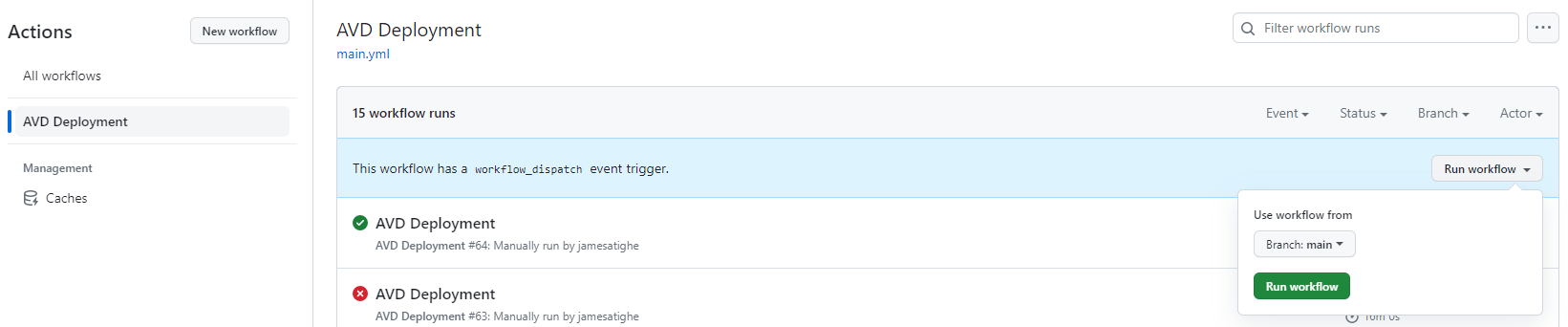
Next, select the relevant workflow. In my case, AVD Deployment then click Run workflow, leave as the main branch (unless your configuration is different) and click Run workflow
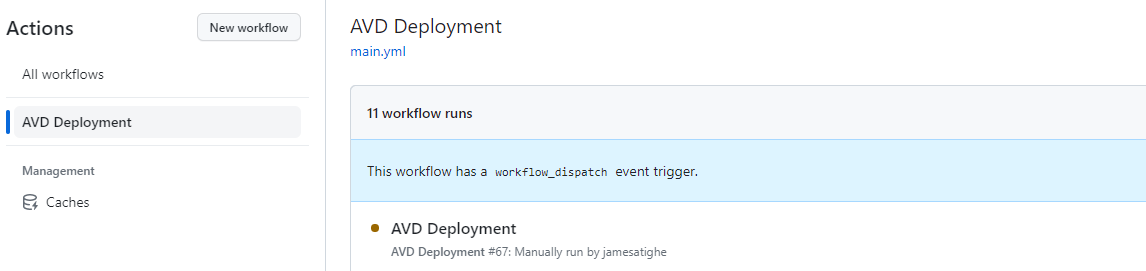
The workflow run should then appear
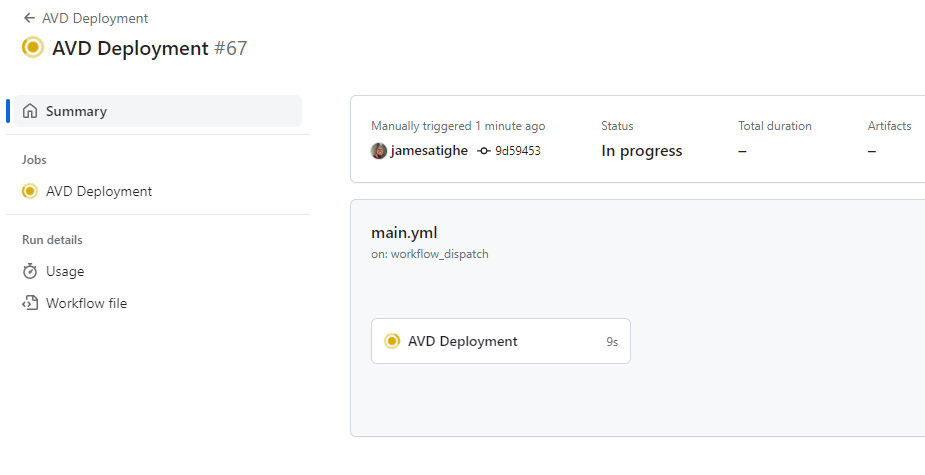
We can view the progress of the workflow by clicking on the run.
If we click the job under the main.yml section we can see the actual status of the workflow job.
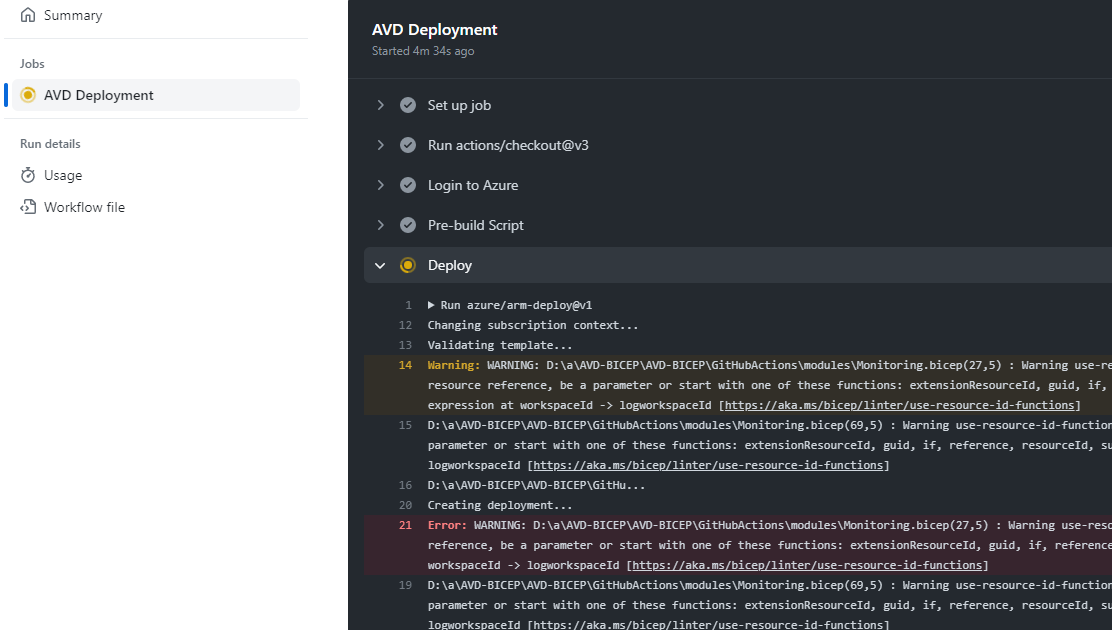
Now we have to wait for the workflow to finish. Ideally, this should only take around 15-20 minutes to complete.
Platform Check
After some time the deployment should mark as complete

We can now check in the Azure Portal to see that Workspace, Host Pool, Application Group, and Session Host are all there!

A quick check via the web console https://client.wvd.microsoft.com/arm/webclient shows the desktop
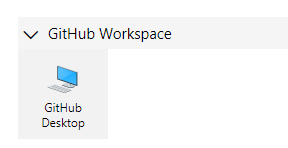
Let’s log in and check it has indeed been built correctly. So far so good!

And we are in!

Deployment – Session Host Update
Like my previous deployment automation, this can also be used to deploy updated Session Hosts into an existing Host Pool using a new image version.
The process is almost exactly the same with only a couple of variables needing to be changed.
Make sure you have a new image version in your Azure Compute Gallery ready for the build. In my case, I have a new version called 1.05.1 that I want to deploy.
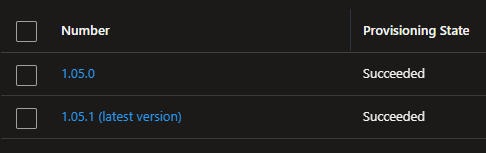
I’ve just added VSCode to the install for testing so this would be classed as a sub-version.
Variables
When performing an update we only need to edit 3 variables.



Setting ASSIGNUSERS to false stops the deployment from attempting to assign users as they are already assigned and we don’t want to override the current assignments.
NEWBUILD is set to true to ensure the Session Host VM numbering starts at 0. When combined with UPDATE true it will not attempt to provision the core AVD components.
UPDATE is set to true to tell the deployment script to use the newest available image version in the Azure Compute Gallery.
With these variables set let’s start a new build.
Deploy Action
So the method to deploy is exactly the same as with a standard deployment.
For brevity, I won’t put the exact steps again but will instead summarize.
Go to Actions > Select the AVD Deployment workflow
Within the workflow click Run workflow and then select Run workflow again.
The deployment will now start.
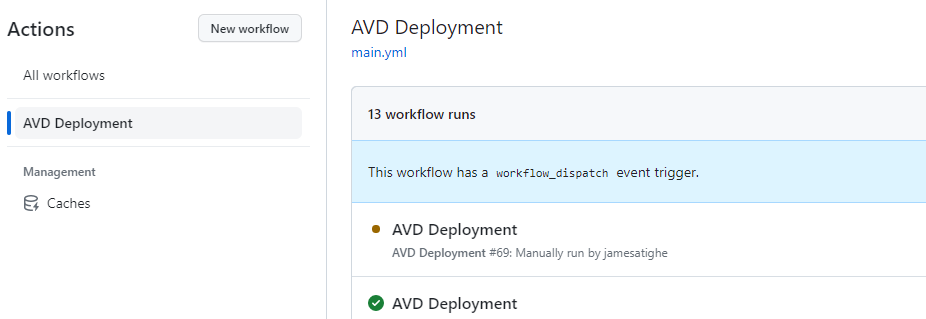
As before wait for the deployment to finish.
Platform Checks
So once again the deployment is now complete.
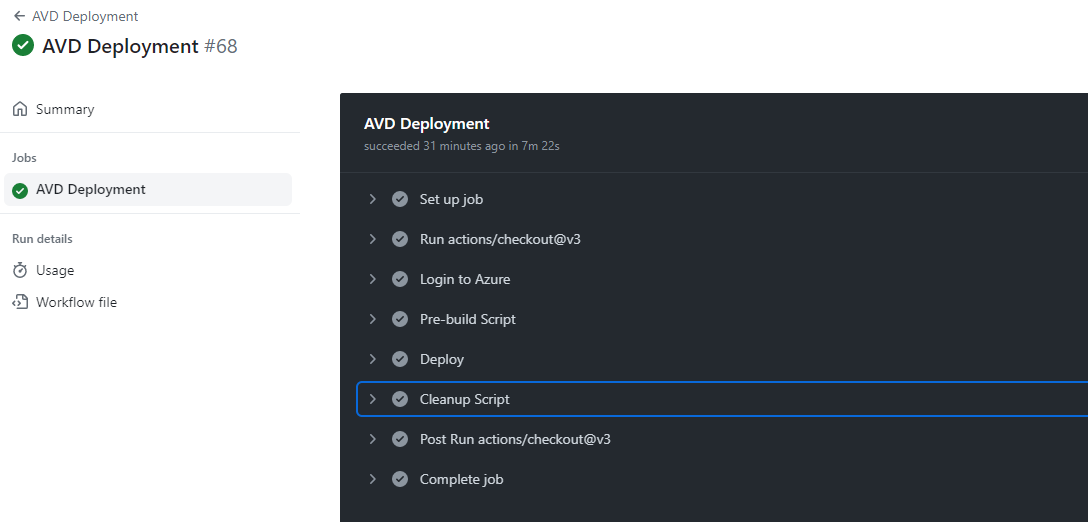
Now, with the update deployment things are going to look a little different. Firstly, we are building additional Session Hosts into the existing Host Pool.
These VMs are deployed alongside the existing Session Hosts, the existing session hosts are then set to Drain Mode and powered off.
This should leave us with only the new Session Hosts powered on and accepting connections.
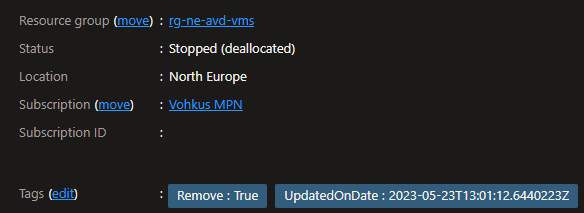
The old Session Hosts will also be marked with a Remove: true tag to allow scripted deletion once testing is complete.
I have been asked why I have gone with this approach and not deleted the old Session Hosts straight away. The reason is redundancy. If there was a critical issue with the new image then I could script the power off of all new Session Hosts whilst powering back on the old versions and then disabling Drain Mode.

This would be far quicker than rebuilding from the old image. I can then review the new image and rebuild as needed.
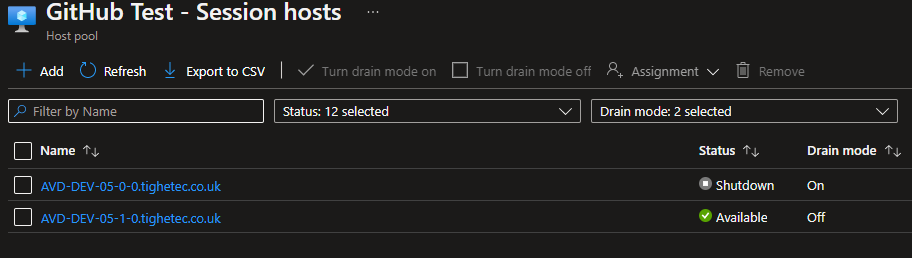
Let’s check the status in the Azure Portal. I can see that we now have 2 Session Hosts.

Nice, I can see that the new Session Host is provisioned, the old Session Host is Shutdown and set to Drain Mode!
If I check the actual old Session Host VM I can also see the scripting has added the Remove Tag.
With the deployment done let’s very quickly log in and check the VM is indeed running on the new version.
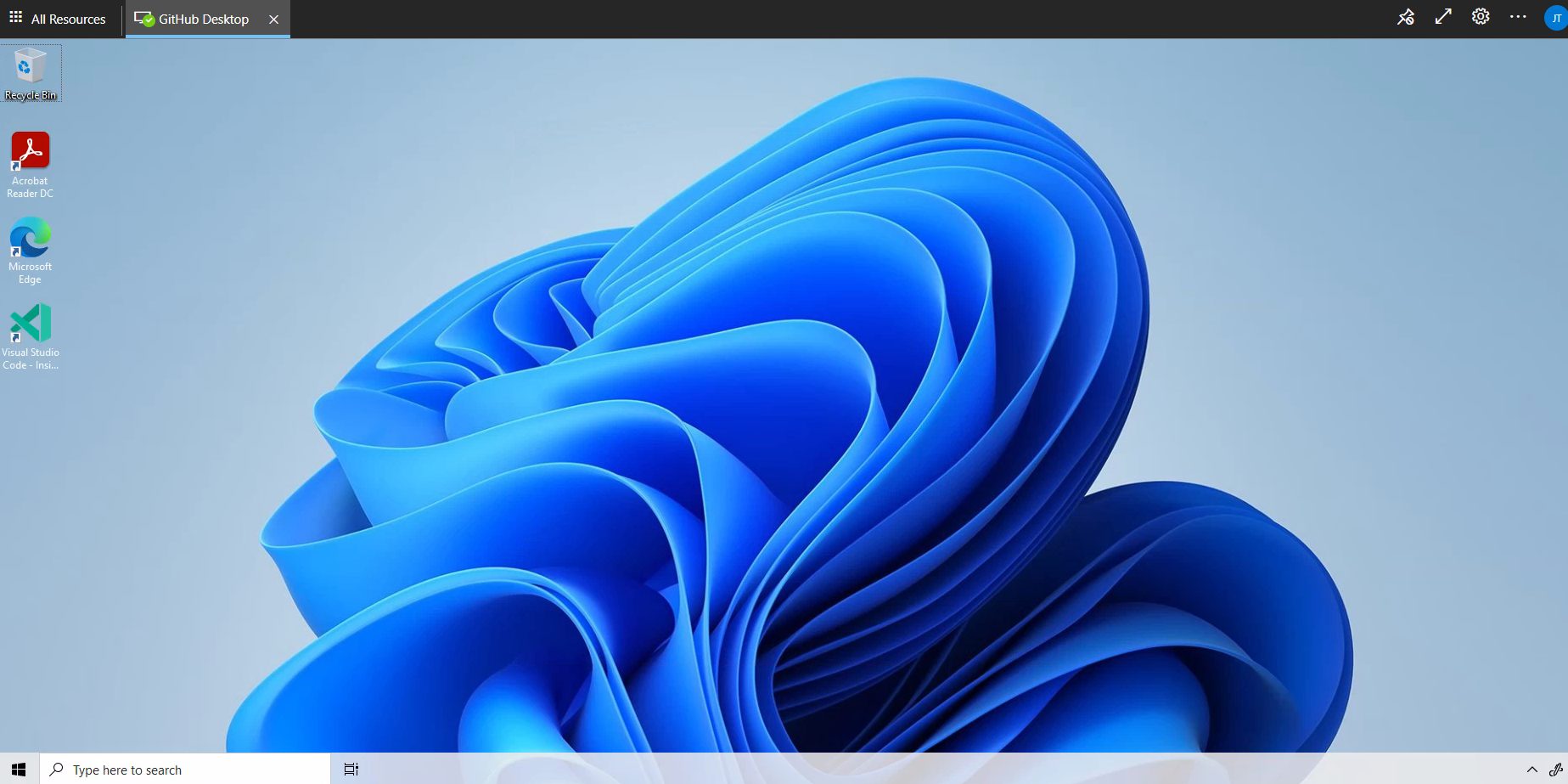
As you can see in the screenshot the new Visual Studio code shortcut is showing on the desktop so it looks like it has updated nicely.
Conclusion
So hopefully this blog will be helpful to show another way you can approach the automation of AVD builds if you don’t have tools like Nerdio and Project Hydra.
The BICEP script I originally wrote for my previous Azure DevOps blogs was able to be used with very few changes.
The main change I had to make was how I assigned Tags to the VM.
In Azure DevOps, I was exporting a JSON object as an output from the PreBuild script and used that in the deployment. For some reason, I could not get GitHub Actions to export it in the correct way. It kept complaining about missing parentheses.
I added an additional localAdministratorUserName and Password variable to allow a separate user for the VM admin (an oversight on my part originally)
I also added an ASSIGNUSERS variable that allows update deployments to not overwrite the Application Group assignments.
Finally, the logic for NEWBUILD and UPDATE was improved to make sure that new AVD core components will only be deployed if NEWBUILD is TRUE and UPDATE is FALSE.
Otherwise, the base script is very similar. In fact, I did manage to make some improvements that I am going to backport into my DevOps builds.
 TigheTec Cloud Consulting