
I thought I would do a quick post on getting USB redirection working on the WVD Spring 2020 Release.
By standard WVD has some higher level redirection configured already (remote audio etc) but not all settings are automatically in place for USB redirection which requires RemoteFX settings.
With the new Spring 2020 release there was added the ability to configure RDP Settings via the Azure Portal. This was really welcome but unfortunately not all options are available to you there.
To check the available settings go to the Window Virtual Desktop service in the portal and go to Host Pools.
Select the relevant Host Pool and click Properties.

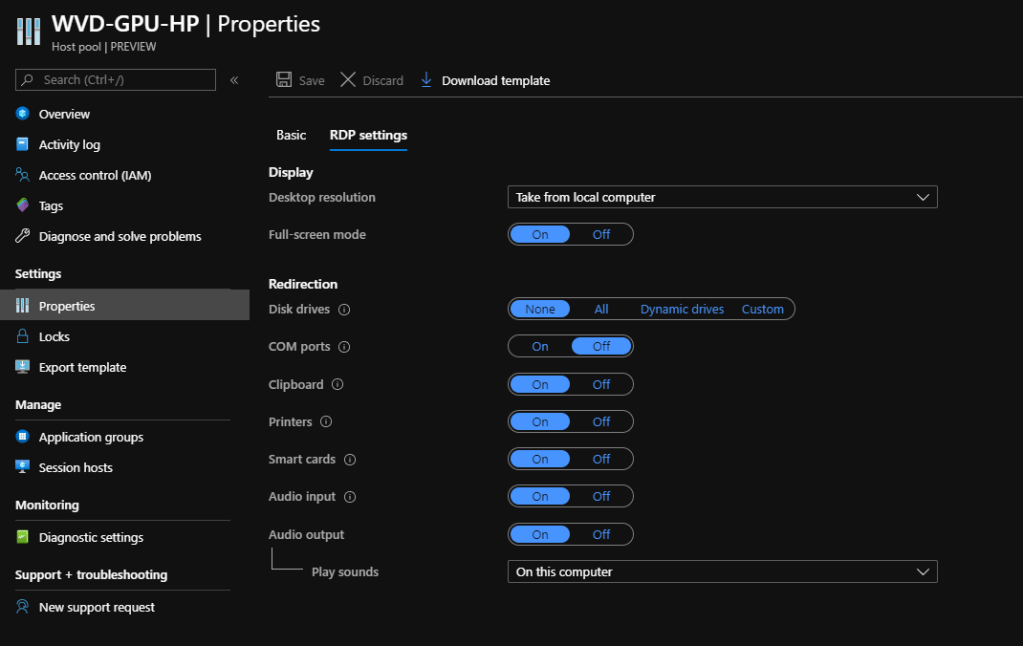
If you select the RDP settings option, you will see all the configurable options for the Host Pool. This easily allows you to turn on Audio Input for microphone support.
Adding USB Direction with PowerShell
The standard settings are good, but one thing it does not allow is USB direction for Plug and Play devices. In order to do this we need to crack out PowerShell!
First ensure you have installed the new WVD PowerShell Module. If not run the following.
Install-Module -Name Az.DesktopVirtualizationAs the new WVD Spring 2020 Release is ARM we first need to connect to Azure.
$creds = Get-Credential
Connect-AzAccount -Credential $creds
Once connected get the Azure Subscriptions.
Get-AzSubscription
Select the relevant subscription
Get-AzSubscription -SubscriptionName <Name> | Select-AzSubscription
Now we need to get the relevant WVD Host Pool and set the RDP Settings to allow USB device direction.
Run the following to get the current RDP settings for the Host Pool.
Get-AzWvdHostPool -ResourceGroupName <Resource Group Name> -Name <Host Pool Name> | Select CustomRdpPropertyWe now need to amend the RDP Settings to include the following setting
devicestoreredirect:s:*;camerastoreredirect:s:*;This is done as below taking the existing RDP Settings and adding the extra settings (seen at the end)
Update-AzWVDHostPool -ResourceGroupName <Resource Group Name> -Name <Host Pool Name> -CustomRDPProperty "audiocapturemode:i:1;audiomode:i:0;drivestoredirect:s:;redirectclipboard:i:1;redirectcomports:i:0;redirectprinters:i:1;redirectsmartcards:i:1;screen mode id:i:2;devicestoreredirect:s:*;camerastoreredirect:s:*;"Once completed re run the Get-AzWvdHostPool command to check it has applied.
Required Group Policy
Next we need to set GPO settings on both the client and the Session Host.
Client Side
The client settings are simple and can be applied individually for test, or via AD across multiple servers.
On my machine I have added the policy under Local Group Policy as my machines is not domain joined.
Under Computer Configuration > Administrative Templates > Windows Components > Remote Desktop Services > Remote Desktop Connection Client > RemoteFX USB Device Redirection
Enable the policy Allow RDP Redirection of other supported RemoteFX USB devices from this computer

Server Side
On the Session Hosts you will need to configure the following setting.
Under Computer Configuration > Administrative Templates > Windows Components > Remote Desktop Services > Remote Desktop Session Host > Device and Resource Redirection
Disable the policy item Do not allow supported Plug and Play device redirection

This seems odd to Disable the policy, but the default is to NOT allow USB redirection of supported Plug and Play devices. Therefore, disabling this policy actually enables the redirection.
Now we should be all set to test out USB direction in the client!
Testing!
First login to the WVD platform. You will need to use the Remote Desktop Client as the USB redirection will not work through the HTML 5 web client.

Once you have connected you should see a fancy new icon on the Remote Desktop bar. This icon allows you to select which local USB devices are in use within the WVD session.

I am going to select my Xbox 360 wired controller to do a little gaming on my GPU accelerated WVD server 🙂
Simply click the icon. Then select the USB devices you wish to pass through, click OK and away you go.
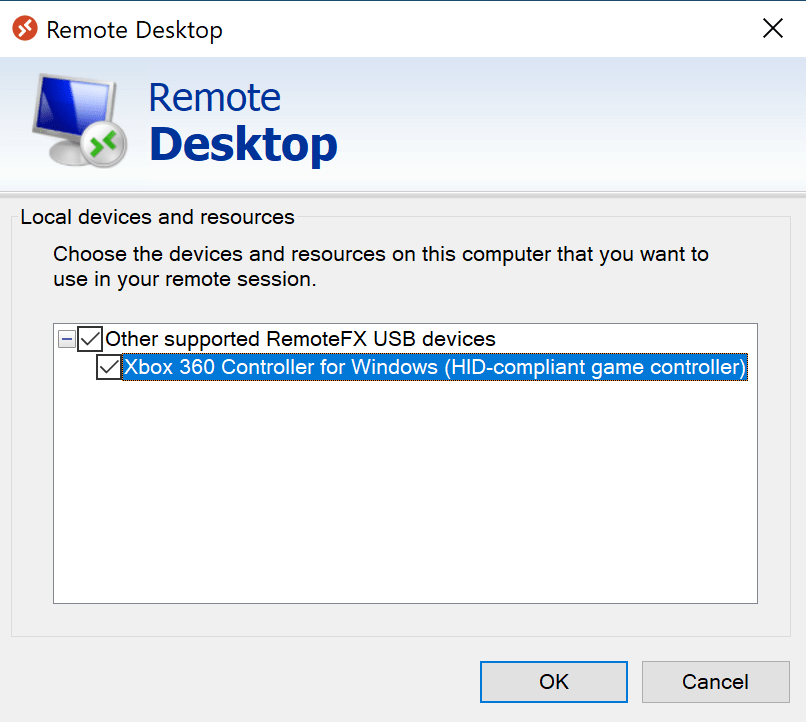
I then loaded up Super Meat Boy and had a quick test. Controller recognised and all good to go!

 TigheTec Cloud Consulting